Getting started
SetGenius is built around one idea: add each song to your library once, then reuse it across every setlist you ever build. The first sitting takes the longest. After that, building a set for a new gig takes minutes.
Here is the whole flow.
One thing to settle first, if you play with others: everything below happens either in your personal Solo library or inside a shared band library, never both at once. See Solo mode and bands if you're not sure which you're in.
Step 1 — Build your song library
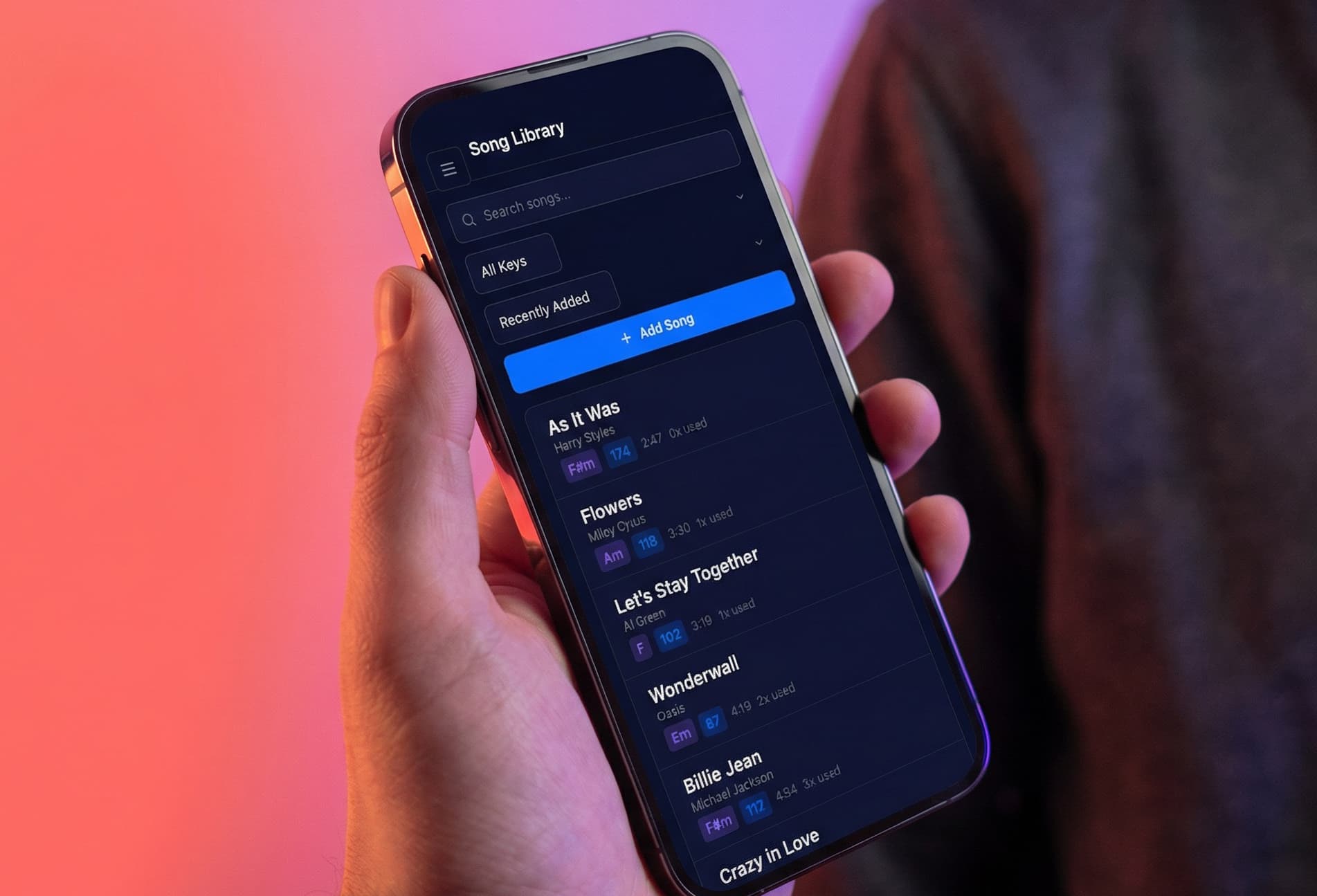
Your library is your repertoire. Every setlist is assembled from it, and the AI can only suggest songs that are already in it — it will never invent a song your band does not play.
Go to Songs and add your first track. Only two fields are required:
- Title
- Artist
Everything else is optional, but the more you fill in, the more useful the rest of the app becomes:
| Field | Why it matters |
|---|---|
| Duration | Drives every timing calculation. Enter it as 3:45 or as 225 seconds — both work. |
| Key | Used by the AI to avoid putting two songs in the same key back to back, and shown in perform mode. |
| BPM | Feeds the energy curve in Smart Reorder, and shown in perform mode. |
| Genre | Mostly used by the AI Song Suggester to read your band's overall style — it isn't used when building or reordering a setlist. |
| Notes | Anything the band needs to remember — who counts it in, the false ending, the key change in the last chorus. For your own reference only; the AI never reads this. |
| YouTube link | Opens in practice mode so you can learn or revise the song in place. |
| Lyrics | Shown in the vocals panel in perform mode. |
Auto Fetch Info
Once you've typed a title and artist, click Auto Fetch Info to look up duration and genre (from MusicBrainz), BPM and key (from a Spotify audio-features service), and lyrics (from lyrics.ovh) in one go. It's a lookup you trigger, not something that happens as you type, and it won't always find a match — anything it can't fetch, or gets wrong, you can just type in yourself.
Do not try to add everything at once
A 120-song repertoire is a long evening. Add the thirty or forty songs you actually gig most often, build a real setlist with them, and add the rest as they come up.
Not sure what to add next?
The library also has its own AI Song Suggester, separate from setlist building. It looks at what you already play and recommends real songs you don't have yet that would fit your repertoire — see suggesting songs for your library.
Step 2 — Tell the AI about your gig
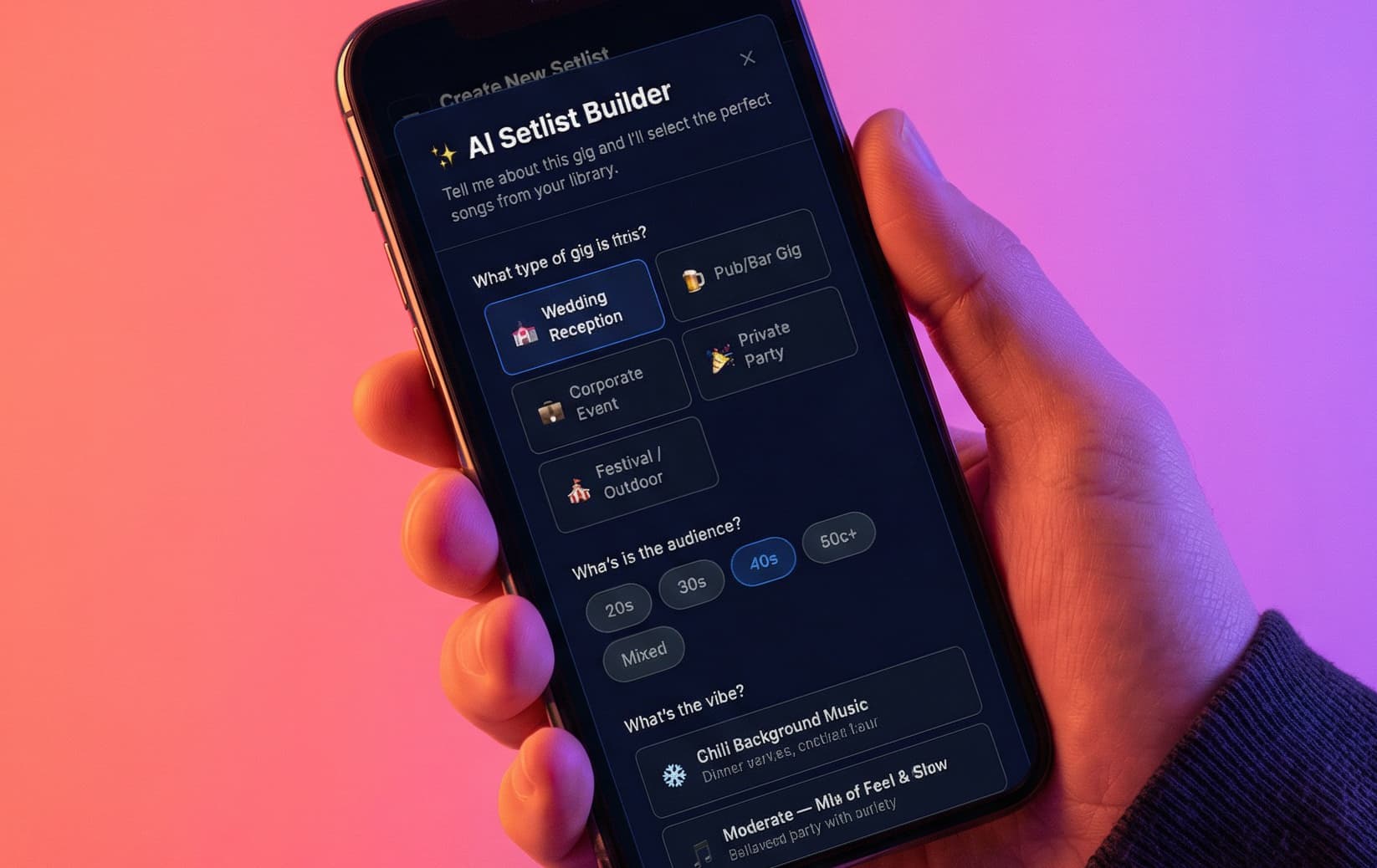
Open the setlist builder and choose Build new setlist. The AI Setlist Builder asks five things:
- What type of gig is this? Wedding Reception, Pub/Bar Gig, Corporate Event, Private Party, or Festival/Outdoor.
- Who's in the audience? Pick any that apply: 20s, 30s, 40s, 50s+, Mixed.
- What's the vibe? Chill Background Music, Moderate — a mix of fast and slow, or High Energy Party.
- How long is the set? A slider from 30 minutes to 4 hours — this is the slot you have been given, not the total length of the songs. See setlist timing for the difference.
- Any special requests or constraints? Optional, up to 500 characters. "No slow songs — they want to dance all night" or "Must include their first dance song: Perfect by Ed Sheeran" are exactly the sort of thing to put here.
The special requests box is the highest-value field here. The AI reads it properly, and it is the fastest way to steer a set without editing it afterwards.
Step 3 — Review and edit the suggested setlist
SetGenius returns a complete, ordered setlist in one go, along with a short paragraph explaining its overall selection strategy — this step doesn't give a separate reason for every song; that level of detail comes from Smart Reorder, in Step 4.
This is a starting point, not a verdict. You know your band and your crowd better than any model does. Drag songs into a new order, swap one out for another from your library, or delete anything that does not belong.
If you would rather start from a set you have already built, use Smart Reorder instead. That keeps your song choices and reworks the running order, with a reason for every song. More on both flows in how SetGenius AI suggestions work.
Step 4 — Check the energy curve
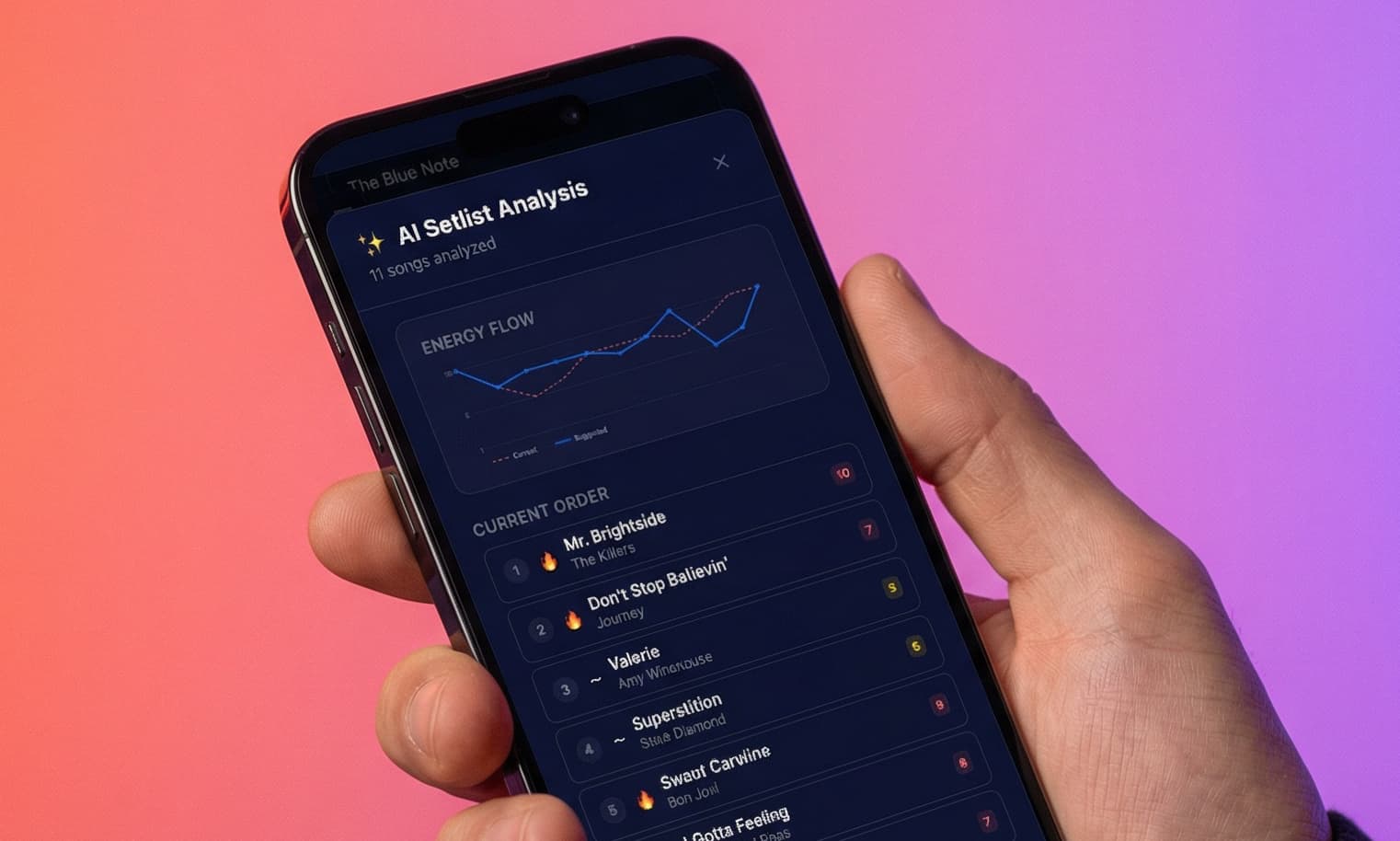
Run Smart Reorder (available once your setlist has at least three songs) to see it plotted as an energy curve, so you can see the shape of the night at a glance rather than reading down a list and hoping.
Look for three things:
- A strong opening. The first song should engage the room immediately.
- No long flat stretch. Three slow songs in a row in the middle of a wedding dance set will clear the floor.
- A proper close. The energy should be up at the end, on something people sing along to.
Smart Reorder flags specific problems and possible improvements alongside the curve. See reading the energy curve for what they mean.
Step 5 — Practice the set
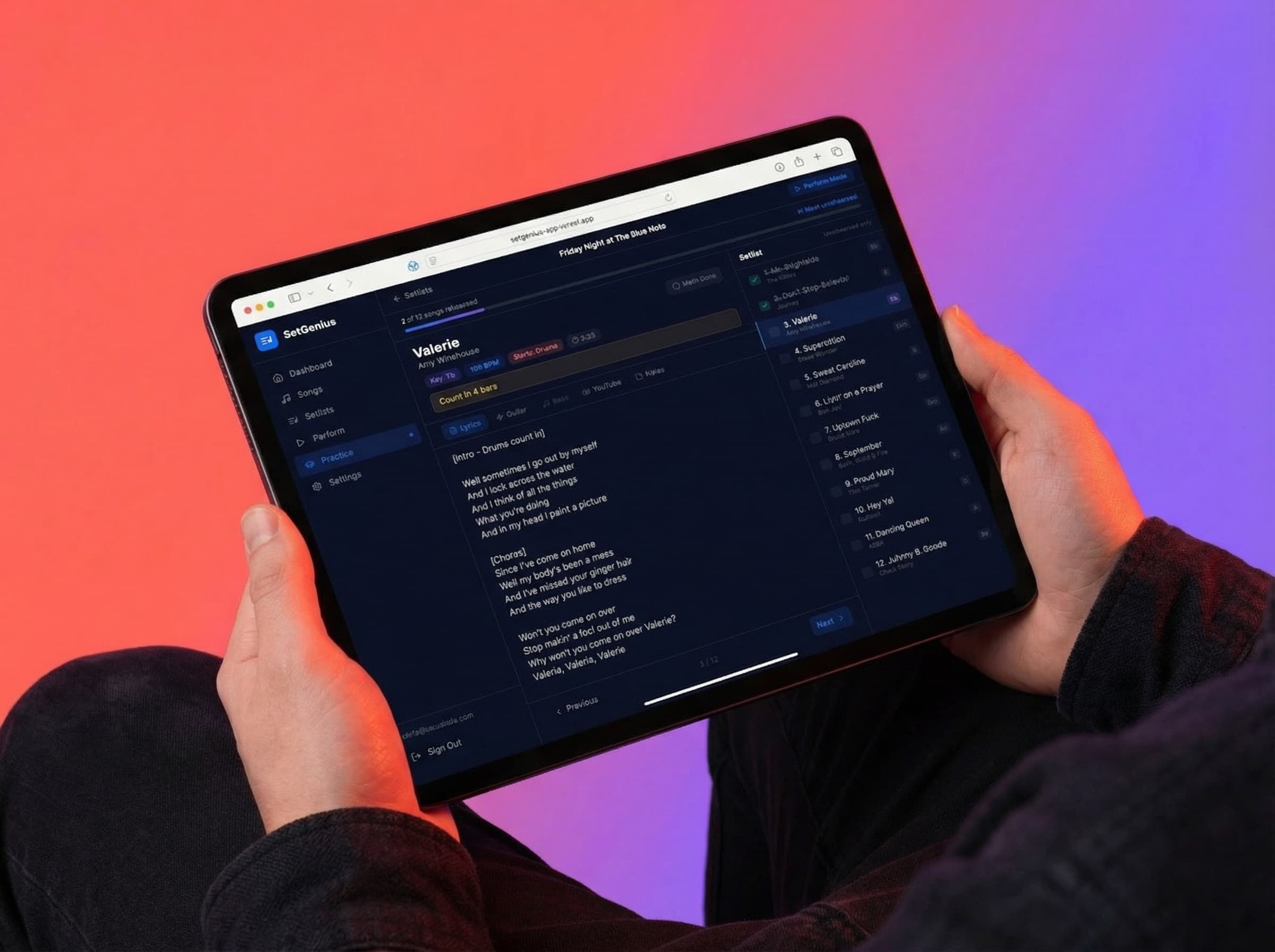
Practice mode is built for the practice room rather than the stage. It shows one song at a time with everything you need to learn it:
- Lyrics
- Guitar tabs and chords
- Bass tabs
- The YouTube video, embedded
- Your own practice notes
Tick songs off as the band gets them under control. The progress tracker shows how far through the set you are, and jumping straight to the next song that still needs work means nobody wastes practice time on the four songs you have played a hundred times.
Step 6 — Perform
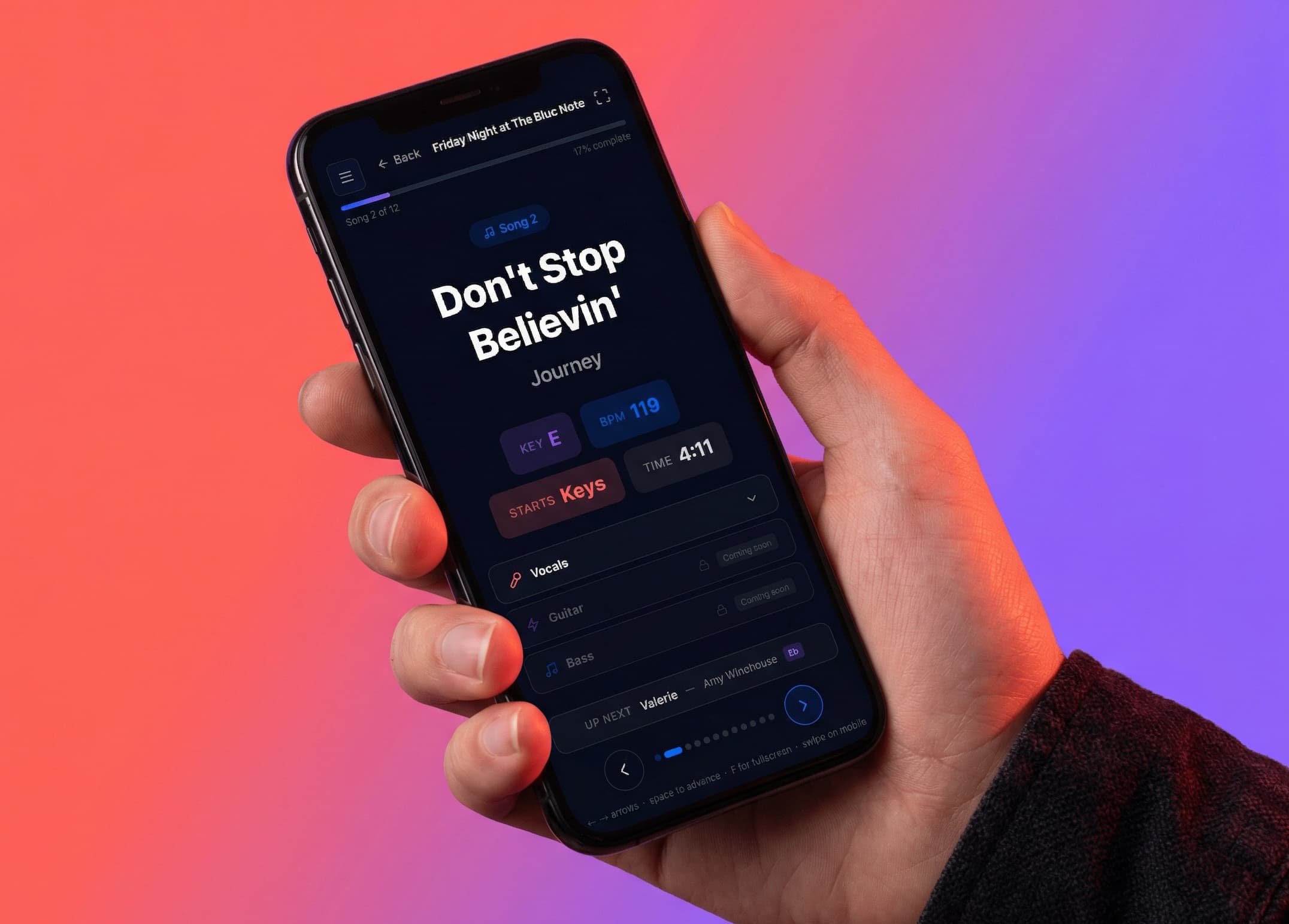
On the night, switch to perform mode. It shows the current song in large type — title, artist, key, BPM — with the next song previewed underneath and a position counter so you always know where you are in the set.
Vocals, guitar and bass each have their own panel you can open if you need it and leave shut if you do not. Fullscreen hides everything else on the device. The whole view is dark by default, which is easier on the eyes under stage lighting and less obvious to the front row.
Read using perform mode before your first gig with it — there are a few things worth setting up before doors rather than during the first song.
After the gig
Once a setlist's gig date has passed, your Dashboard automatically starts tracking it — your most-used songs, ones you haven't played in a while, and a running count of gigs played. Nothing to set up; it just accumulates as you gig.
Playing a similar gig again soon? Open the setlist and Duplicate it from your setlists list rather than rebuilding from scratch — then tweak the copy for the new date and venue.